
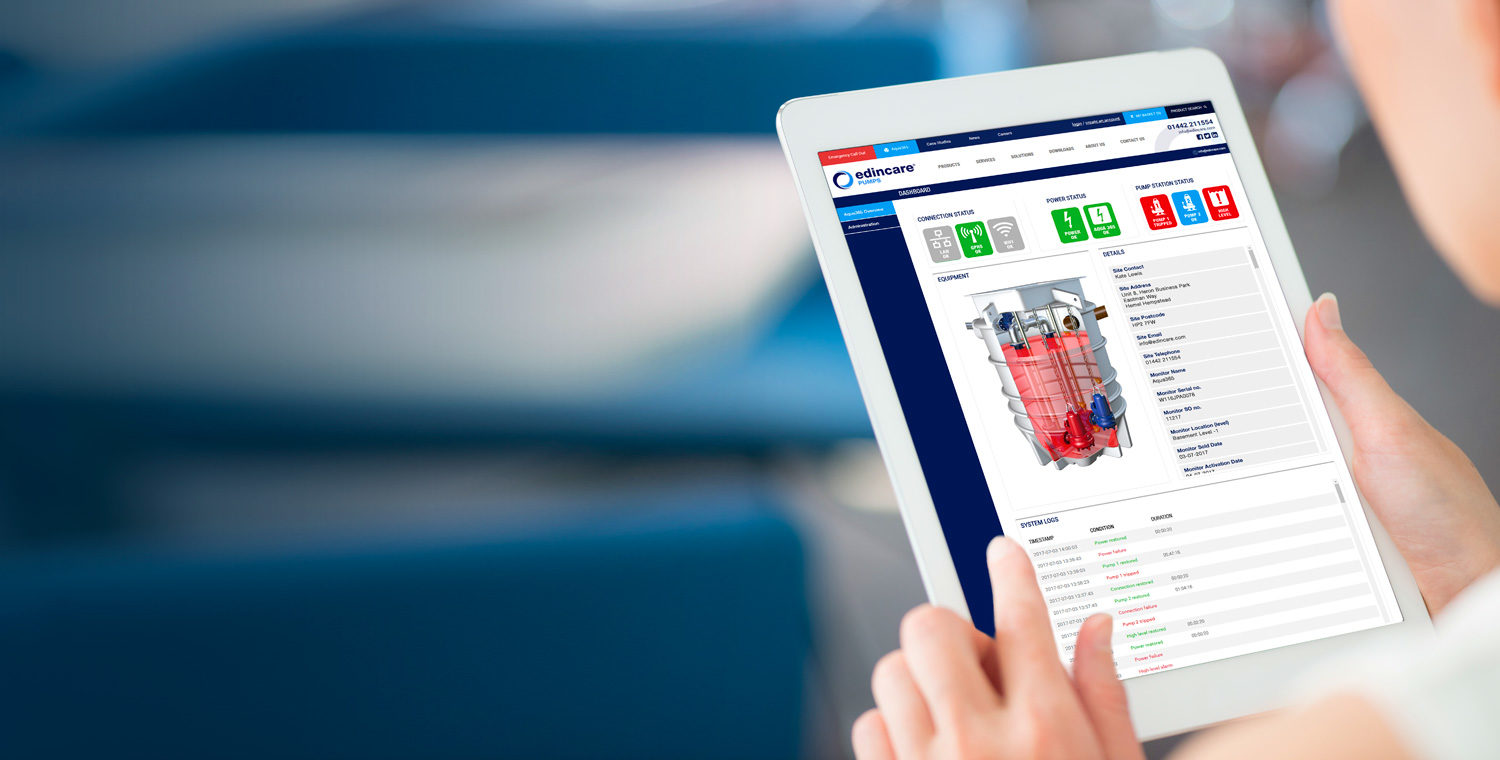
How to access the Aqua365 Portal
1. Access the website
Go to www.edincare.com
2. Open Aqua365 Login
Click on the Aqua365 Login link or navigate directly to: https://edincare.servitly.com/login
3. Log in
Enter your login credentials to access your account.
4. Homepage Overview
Upon logging in, your homepage will display:
- Current equipment alerts
- Your account details
- Your equipment overview
5. Equipment Details
Select an equipment tab to view:
- Connection status
- Pump station status
- Equipment condition
- Site and equipment information
6. Alerts History
Scroll to the bottom of the screen to:
- View alert activity over a selected period
- Adjust and set custom date ranges to review alert history
7. Edit Equipment Information
Click the edit icon ( ) to access additional equipment details
8. Configure Alerts (Rules)
Navigate to the ‘Rules’ tab set up custom alerts based on your requirements
9. Apply Alert Actions
Define:
- The type of alerts you want to receive
- The actions to be triggered when those alerts occur